
Datasources
A datasource decides what Power BI gets: which tickets, and which tables. Each datasource has its own feed URL, the link you paste into Power BI.
Make one datasource for each question you want to answer, for example “this year’s tickets” or “everything still open”. Only you can see and use the datasources you create.
Create a datasource
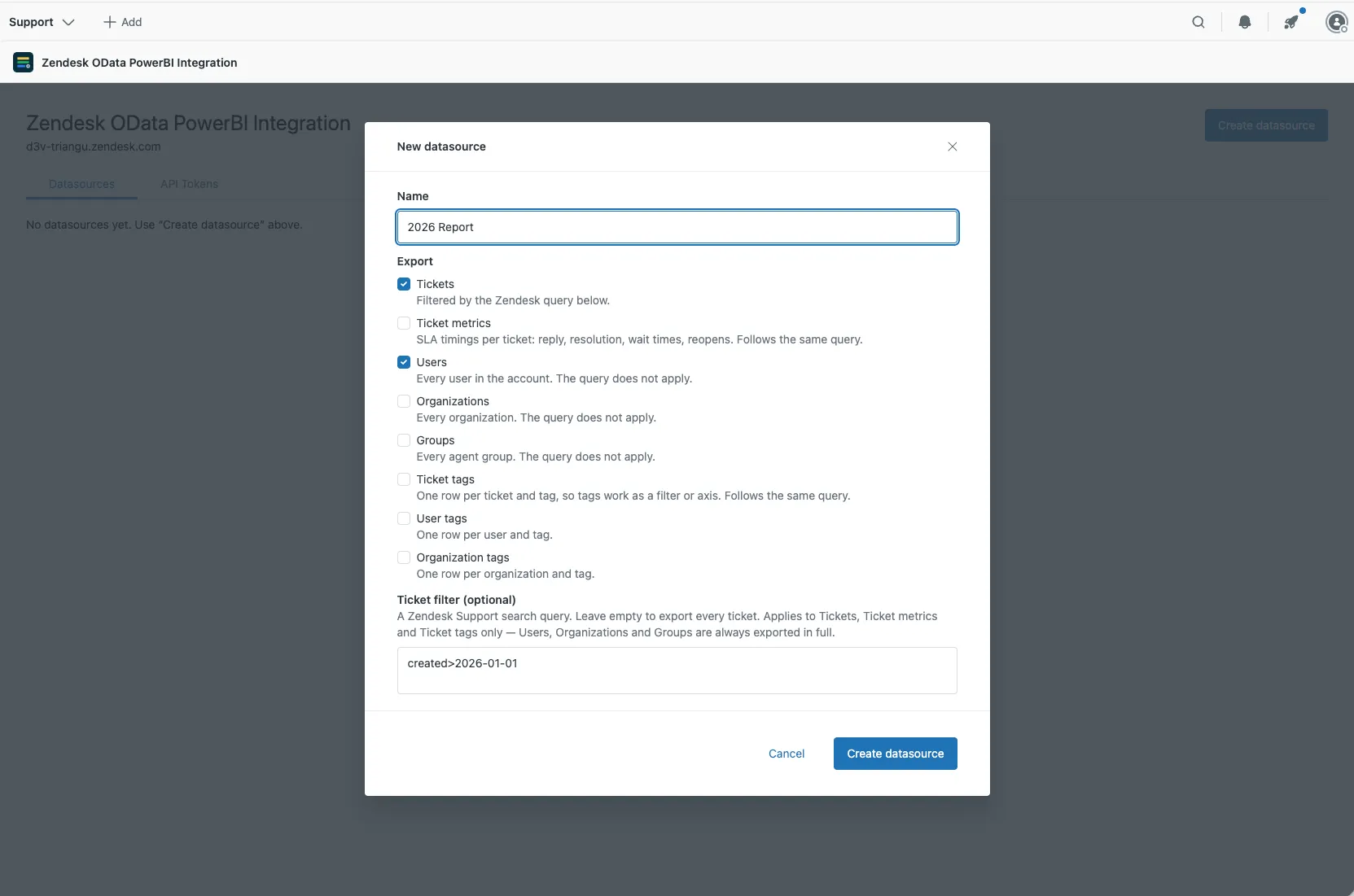
Section titled “Create a datasource”- On the Datasources tab, select Create datasource.
- Enter a Name that says what it’s for, such as 2026 report.
- Under Export, tick the tables you want in Power BI. See Tables and columns for what each one contains.
- Optional. Enter a Ticket filter to include only some tickets (see below). Leave it empty for all tickets.
- Select Create datasource.
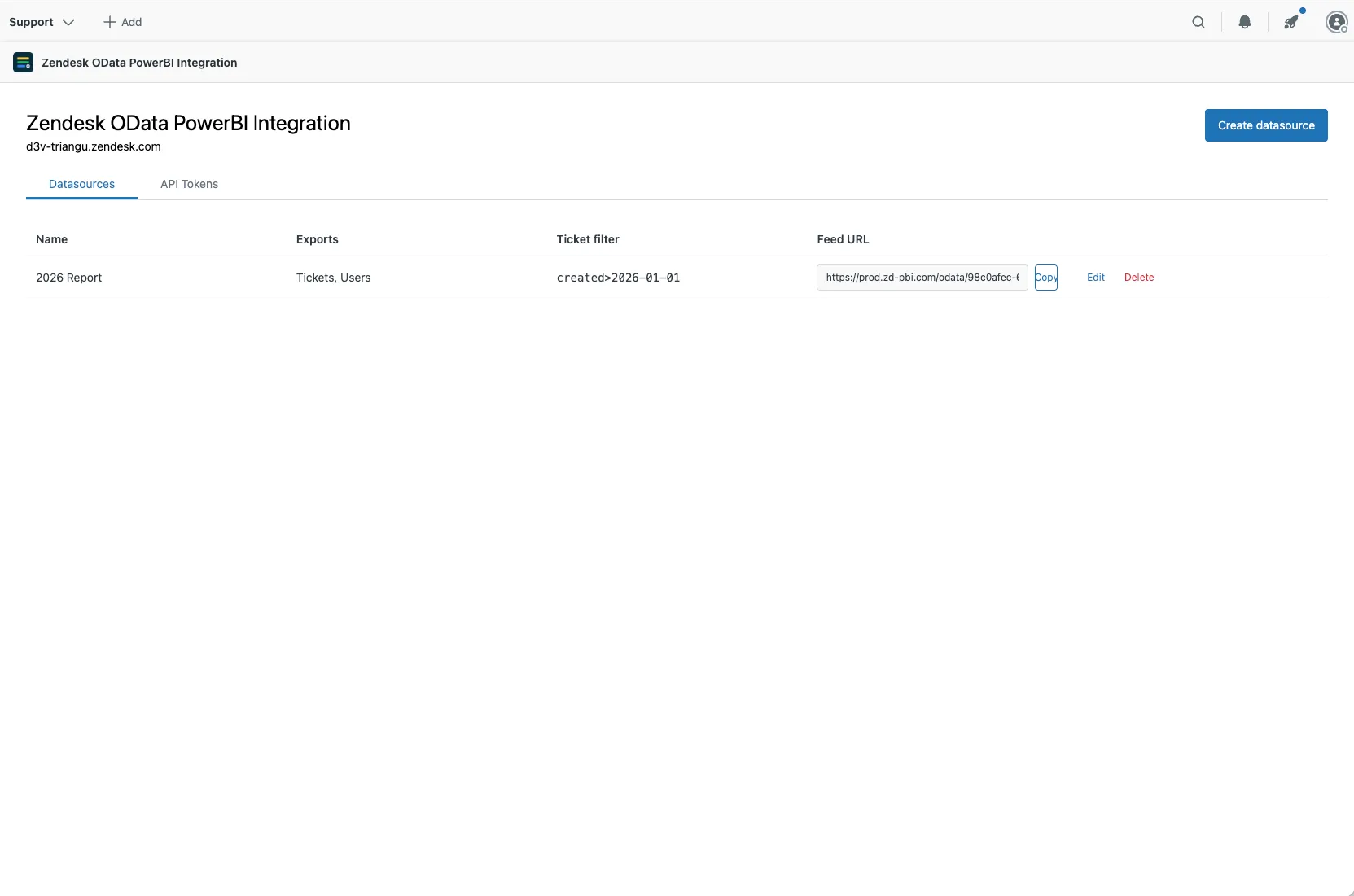
The datasource appears in the list. Select Copy next to its Feed URL and paste it into Power BI.
Ticket filter
Section titled “Ticket filter”The ticket filter works like the search box in Zendesk: type the same kind of query.
| To get | Type |
|---|---|
| Tickets created this year | created>2026-01-01 |
| Tickets that aren’t solved yet | status<solved |
| Solved tickets | status:solved |
| Tickets tagged premium | tags:premium |
| One organization’s tickets | organization:"Acme" |
| Open urgent tickets | status:open priority:urgent |
The filter picks tickets. It also applies to Ticket metrics and Ticket tags, since those belong to tickets. Users, Organizations, Groups, User tags and Organization tags always include everything in your Zendesk.
Zendesk search takes a few minutes to catch up. A ticket created or changed in the last few minutes may only show up in the next refresh.
Edit a datasource
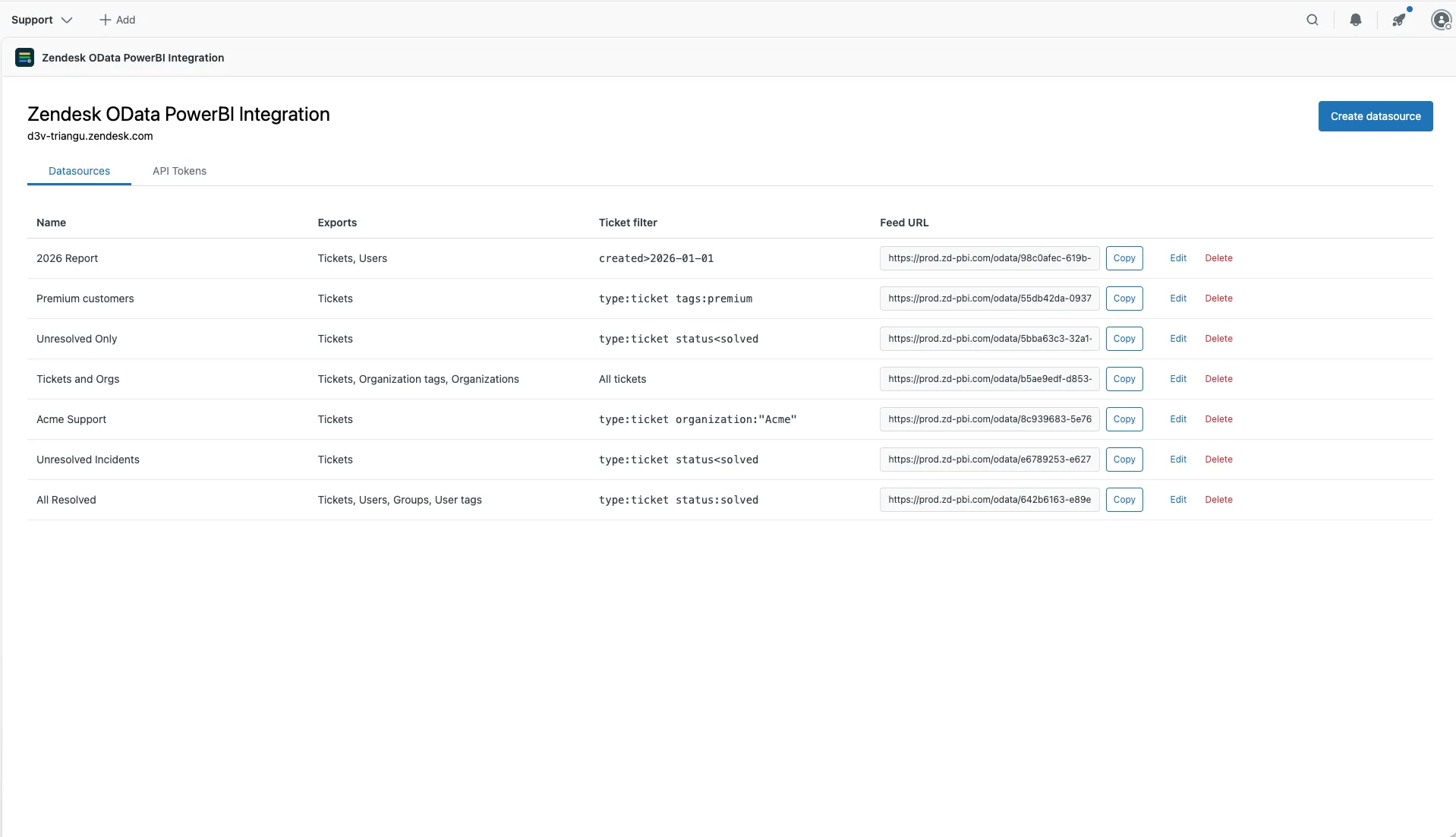
Section titled “Edit a datasource”Select Edit next to the datasource to change its name, tables or filter. The feed URL stays the same, so Power BI picks up the change on its next refresh.
- Added a table? In Power BI, open Transform data and refresh the preview to see it.
- Removed a table? Reports that use it will fail to refresh.
Delete a datasource
Section titled “Delete a datasource”Select Delete next to the datasource. Its feed URL stops working straight away, and reports that use it fail on their next refresh. This can’t be undone.